Fax Migration & Event History
Last updated: August 14, 2025
Fax Event History
Faxing in Canvas now includes a faxing status that indicates the progress of the fax transmission to its destination. Areas where the status is displayed include:
Image Command
Refer Command
Lab Order Command
Notes
Data Integration
Letters
The faxing status will not be displayed for faxes sent via Data Integration.
Features
Status
The statuses provide users with updates on the current stage of the document in the faxing process.
Status | Description |
🔵 Pending | The fax is en route to its destination and awaiting a final status update. |
🟢 Success | The fax was sent successfully and has been delivered to the recipient. |
🔴 Error | The fax was unsuccessful and was not received by the recipient |
If the fax is sent multiple times, there will be a separate event history for each transmission
Timestamps
The history also includes timestamps that specify:
The initial timestamp of when the fax was sent is always shown in the direct view of the fax history
If the fax status is Success, the user can click Expand to view the timestamp indicating when the fax was successfully received.
If the fax status is Error, the user can click Expand to check the timestamp of when the fax transmission failed.
For faxes with a status of Pending, no additional timestamps will be available.
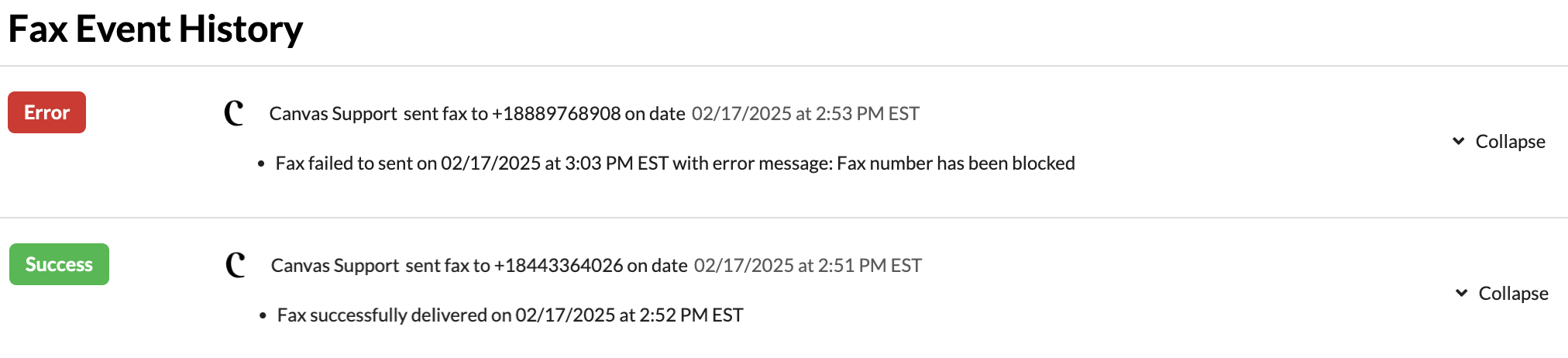
Fax Event History Logs
Depending on what was faxed (note, command, letter) will indicate where the fax history log will be located.
Faxing Notes
Click the triple dot menu in the note header
Click Fax
Complete the fields in the fax modal and send
Go back to the triple dot menu and click Fax Event History at the bottom of the dropdown menu to review the current status.
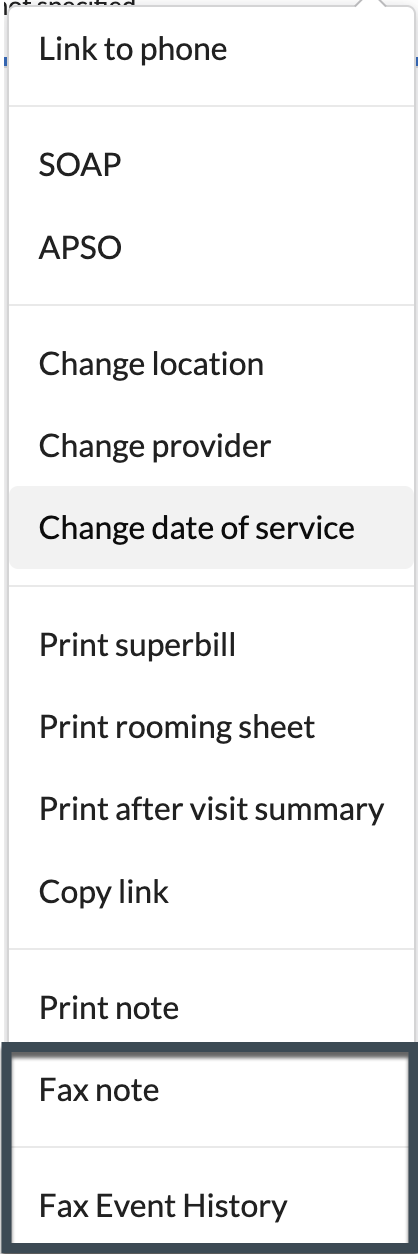
Commands
Click the triple dot menu of a committed SDK command
Click Fax in the dropdown menu
Complete the fields in the fax modal
Return to the command's triple dot menu
Click Audit History
Scroll to the bottom of the Audit History to the to view Fax Event History
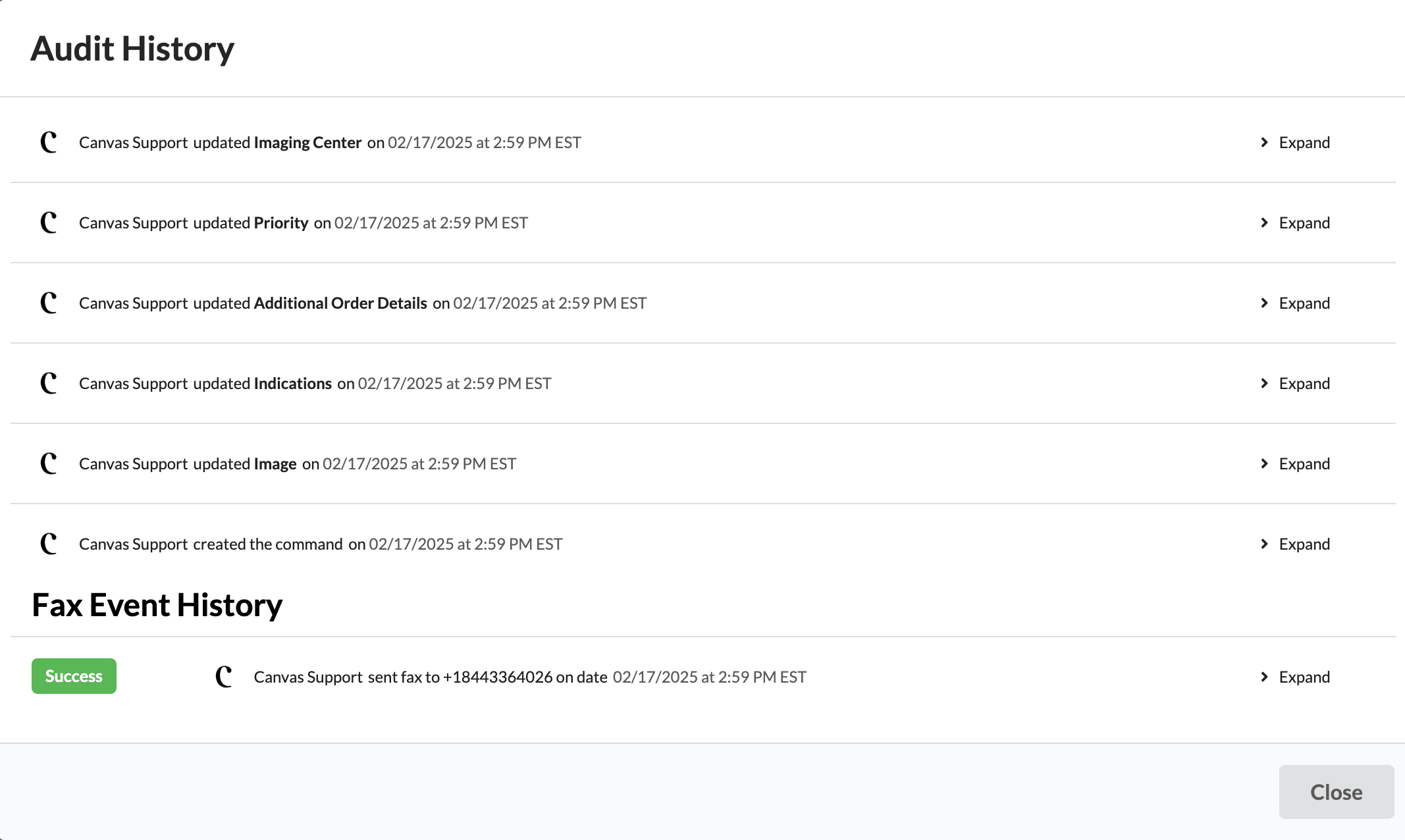
Data Integration
Click the triple line menu and select Data Integration
Select the necessary document
Click Forward by Fax
Complete the fields in the fax modal and send
On the same document, click Fax Event History
The fax history modal will show the status of the fax in the transmission
Faxes sent directly from Data Integration will not be tracked in the patient's chart.
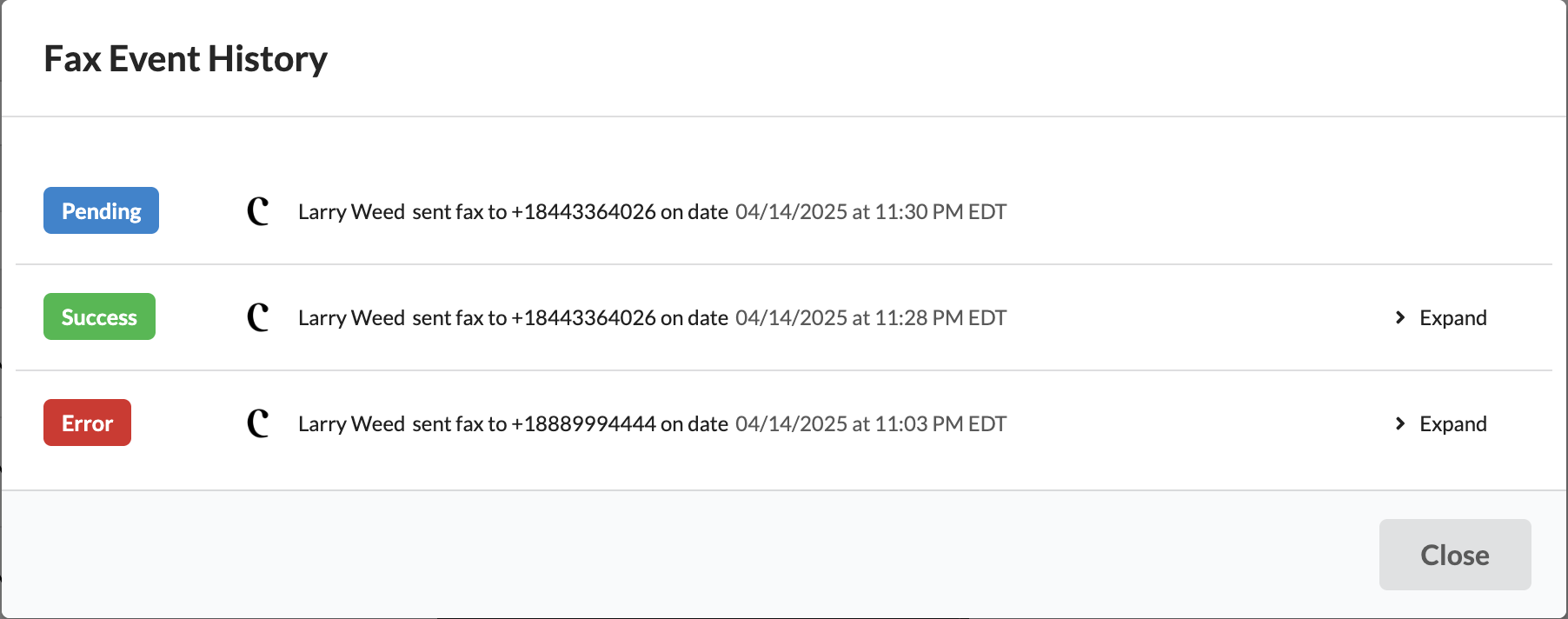
Letters
Select Letter from the New Note dropdown menu in the patient's chart.
Compose the patient's letter.
Click Fax at the bottom of the letter.
The letter's heading will indicate the current status of the fax transmission.
