Collect Patient Payments
Last updated: April 22, 2025
Collecting patient payments is a critical function for clinics to effectively manage account balances and maintain consistent cash flow. Payments may come directly from patients or their guarantors. This article provides step-by-step instructions on how to collect payments in different areas of Canvas, save and utilize a stored payment method, and enable patients to submit payments using the Canvas patient app.
Canvas integrates with Stripe to process payments seamlessly, including support for connected accounts using business lines . This allows clinics to manage payment routing efficiently.
User’s Guide
This guide is here to help explore the essential features for collecting payments, making it easy to understand each scenario and which actions to take in Canvas.
Patient and Guarantor Balances
Payments can be collected from both the patient and the patient’s guarantor. A guarantor's balance may include their own charges as well as the balances of any dependents for whom they are responsible.
Patient Balance: Reflects charges and unpaid balances for a single patient.
Guarantor Balance: If a patient is listed as a guarantor for additional patients, the guarantor’s balance includes the sum of balances for all linked patients.
Key Points
When a payment is entered on a patient with multiple active claims, it is applied to the oldest balance first.
When a payment is entered on a guarantor with multiple linked patients, it’s applied across those patients’ claims starting with the oldest claim first.
Collecting a Payment in the Patient Profile
Payments can be collected from the patient profile as follows:
Navigate to the patient's profile
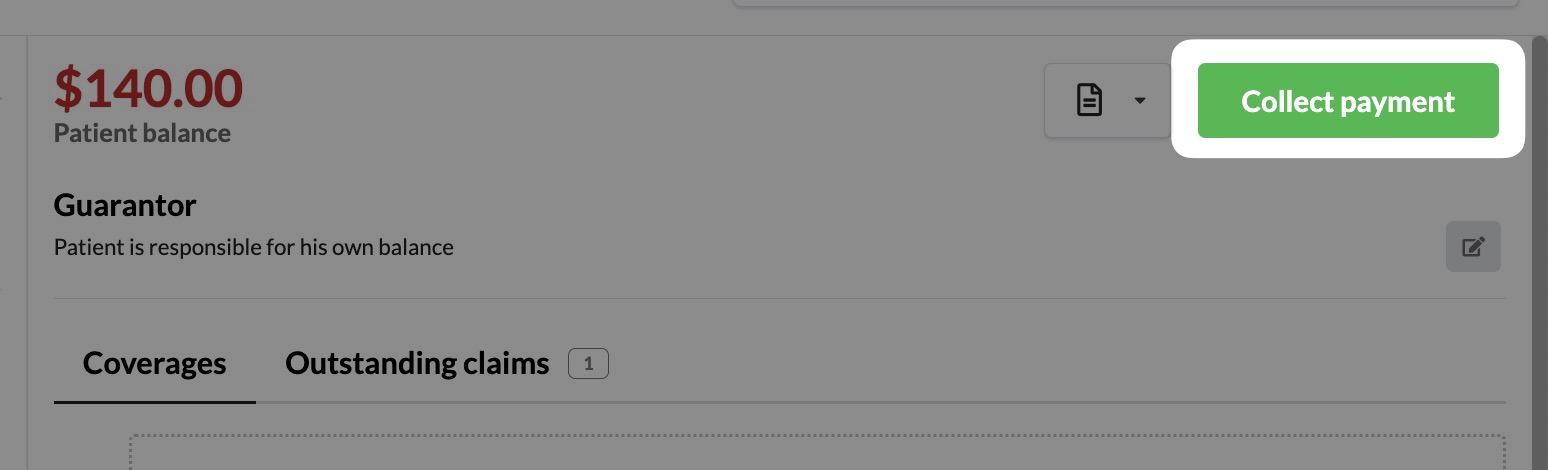
Click Collect Payment in the top right to open the Collect Payment modal.
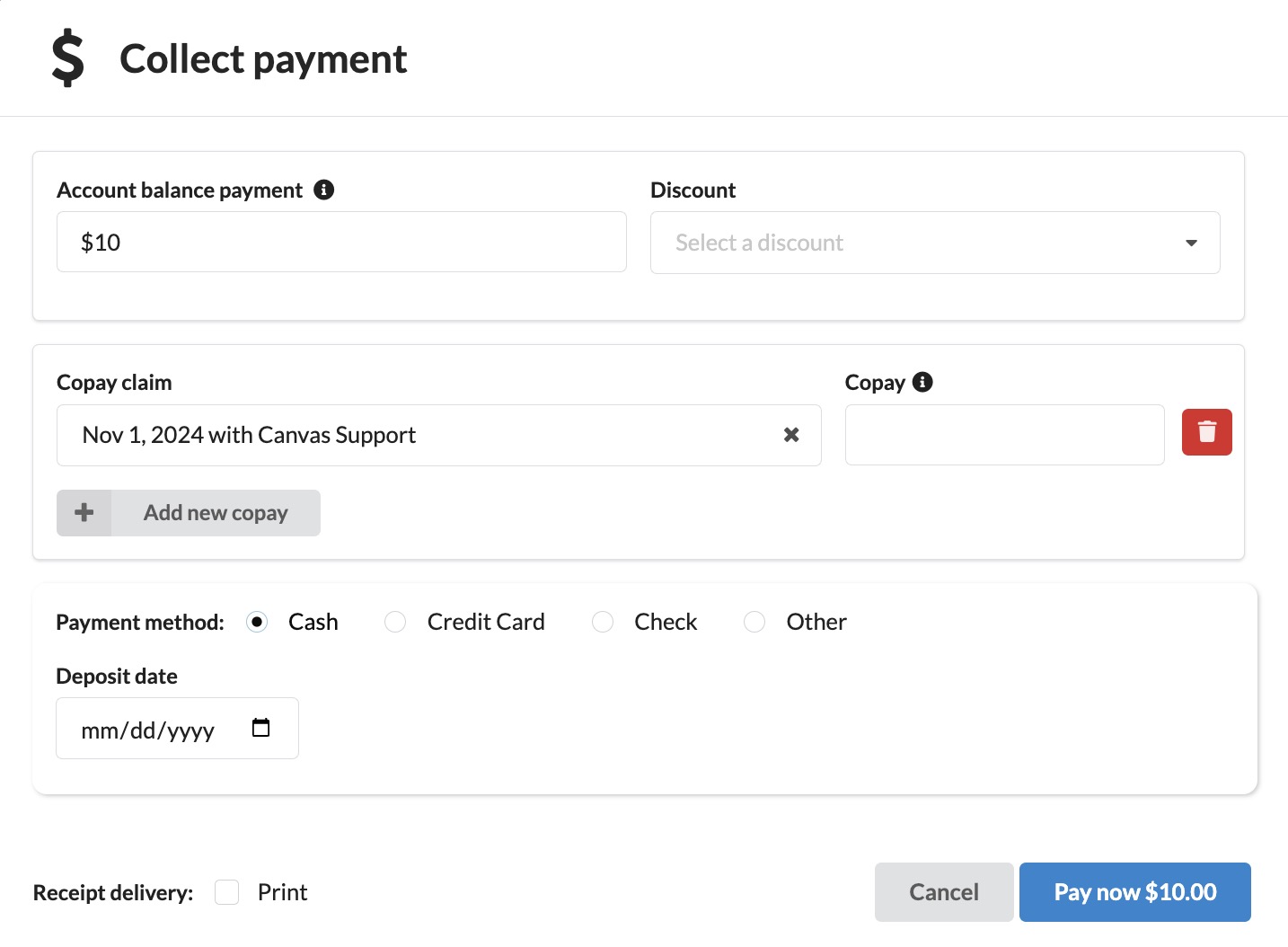
Enter the payment amount in the Account Balance field.
Apply a Discount if the clinic has standard discounts configured.
Enter a Copay
To record a copay for a specific visit, select the claim in the dropdown and enter the amount.
To remove a copay, use the red trash can icon.
Select the Payment Method and enter required information:
Cash: Enter the Deposit Date
Credit Card: Choose a saved card on file or enter a one-time credit card
Check: Enter check number, EFT date, and deposit date.
Other: Enter a payment description.
Check the box next to Receipt Delivery to print the receipt
Click Pay Now to complete the payment.
If your clinic uses Stripe Connect, ensure the patient’s designated business line matches the appropriate Stripe-connected account to prevent payment issues.
Discounts
If the clinic has standard discounts configured, these will be available for selection during payment collection.
Collecting a Copay
Copays can be collected for one or more claims.
Open the Collect Payment modal
Select the claim to apply the copy to from Copay Claim dropdown
If a guarantor is making the copayment, they can either make the payment for themselves or a linked patient. The correct claim will need to be selected from the copay dropdown.
Enter the copay amount in the Copay field
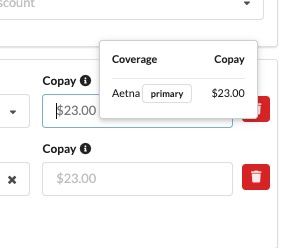
If the copay is stored under the coverage, the copay amount will be shown as reminder text. Additionally, you can click the info button next to the copay field to view further coverage details.
Add additional copays by clicking Add New Copay
Click Pay Now once all copays have been applied
Creating a Posting from the Claims View
In some cases, posting payments, making adjustments, or transferring directly from the claim may be necessary
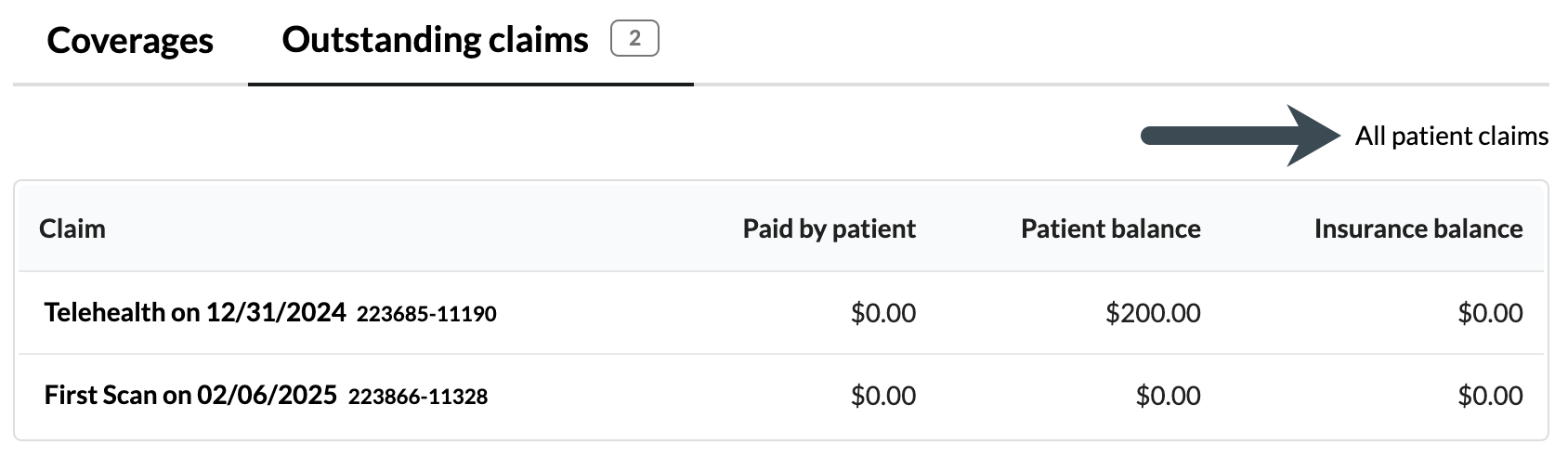
Navigate to Outstanding Claims tab in the patient's profile next to the Coverages tab
Select the correct claim from the list or click All Patient Claims if the desired claim is not listed and click the correct claim.
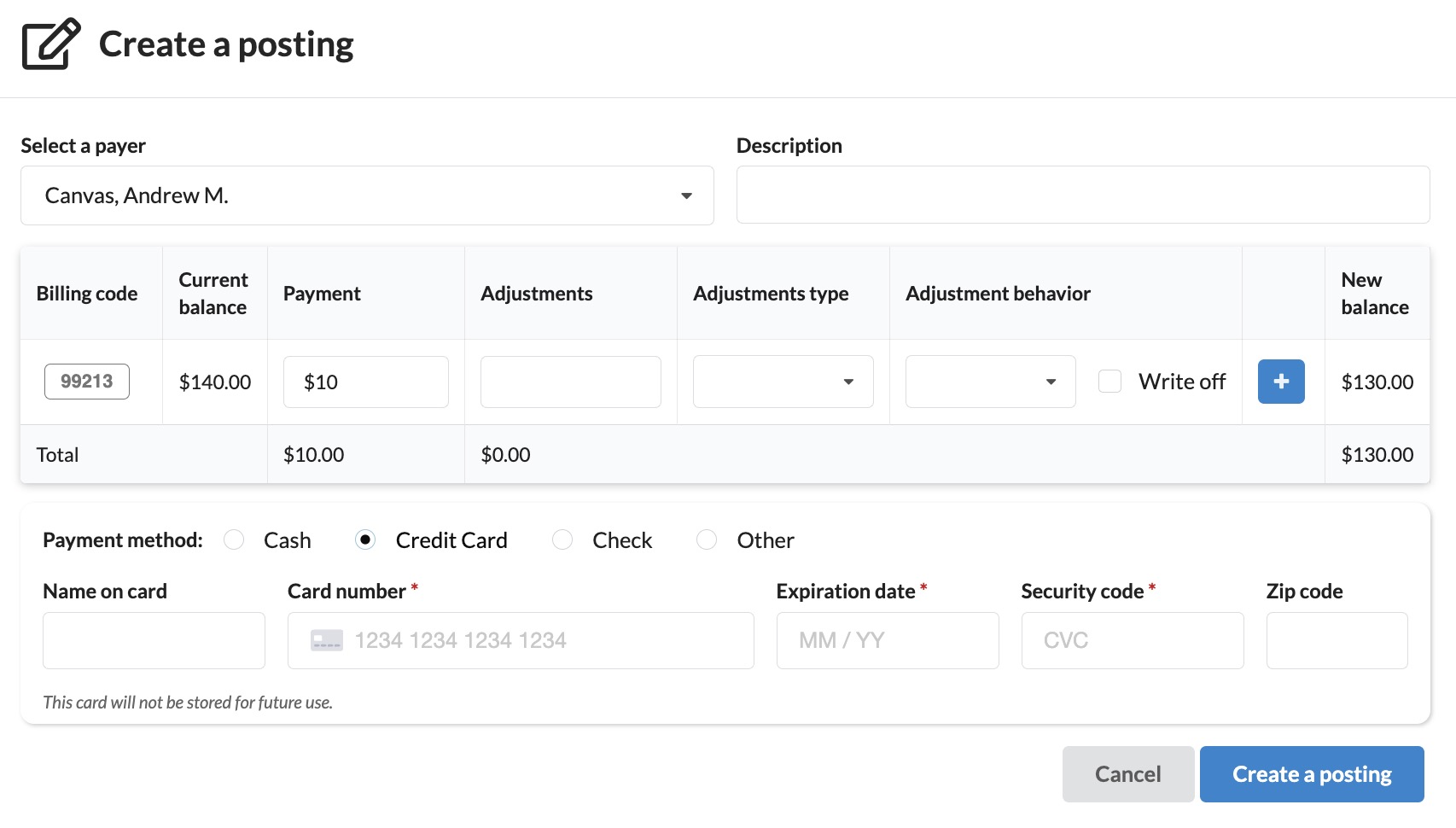
When on the claims view, click Create a Posting below the claim ledger
Select the patient from the Select a Payer dropdown
Complete the payment's Description field, if needed
Enter the payment amount in the Payments field
Select the payment method
Cash: Enter the Deposit Date
Credit Card: Choose a saved card on file, enter a one-time payment method, or select a newly added card saved by the practice.
Check: Enter check number, EFT date, and deposit date.
Other: Enter a payment description.
Add adjustment amounts (Optional) :
Select the adjustment type (e.g., transfer, write-off) from the dropdown.
Adjust behavior and allowed amount as needed.
If your organization has automatic posting rules, the adjustment entered will follow those rules upon submission
Use the blue plus sign to add lines for each adjustment code.
Click Create Posting to save
Patient Portal Payments
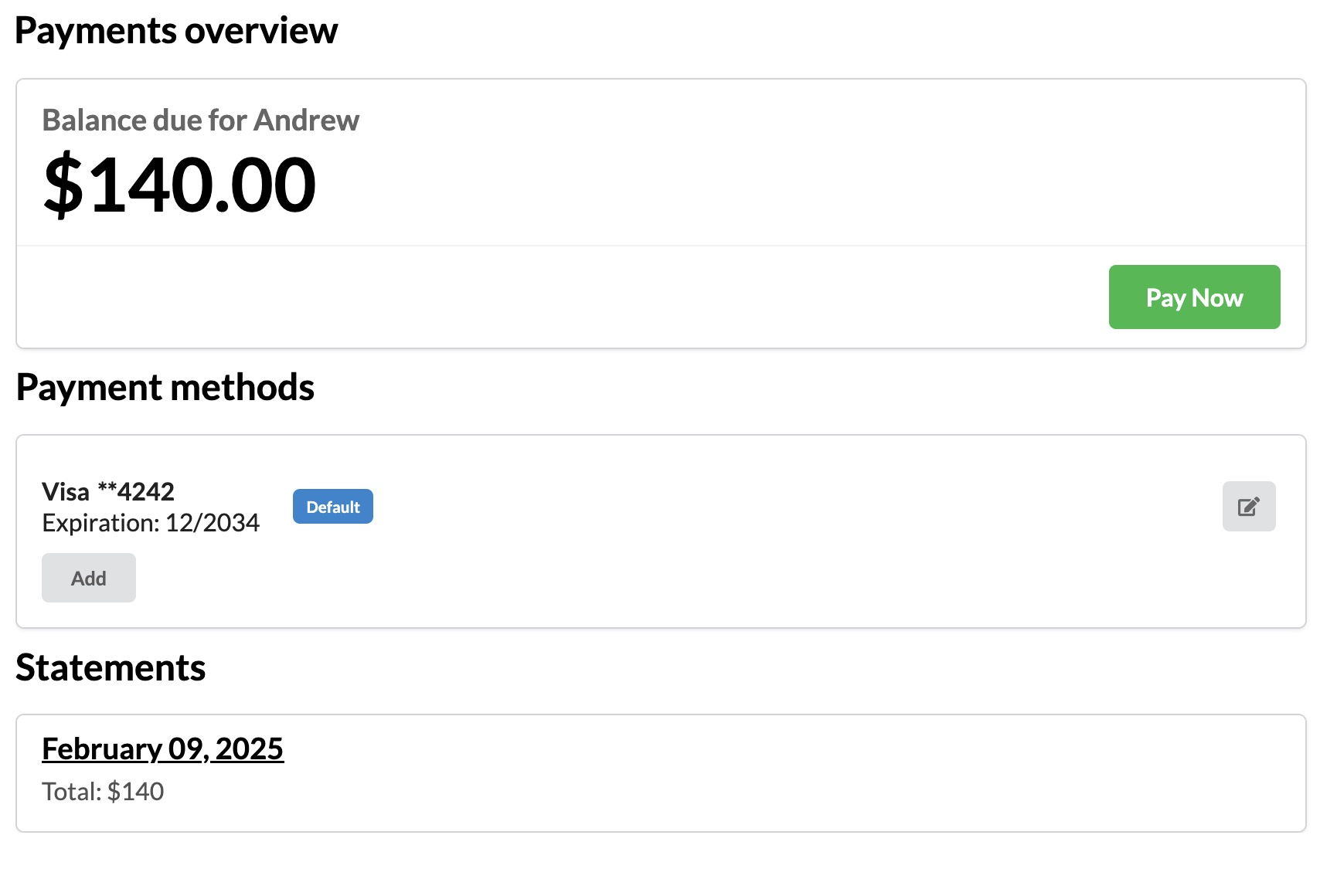
Patients can also pay via the Canvas Patient Portal, which allows them to:
View balances
Make payments using a saved credit card or a one-time use card
Access and review statements
Making a Payment in the Patient Portal
Login to the patient portal using the verified contact method
Click Payments in the left panel
View the patient balance and click Pay Now.
Click Edit Amount if a different amount is being paid
Select a saved credit card on file or enter a one-time payment method.
Click Pay [Amount] to complete the payment
Saving a Stored Payment Method
Storing credit card payment methods enables faster and easier payment collection. A stored payment method can be used by both the practice and the patient within the Canvas Patient Portal.
If your clinic does not use Stripe connected accounts, stored payment methods are available for future transactions without restriction.
If your clinic uses Stripe connected accounts, payment methods are tied to the connected account where they were originally saved. If a patient moves to a different connected account, their stored payment method will not transfer automatically and requires Canvas Support to manually disconnect and reassign it.
Adding a Payment Method in the Patient Profile
Navigate to the patient's profile.
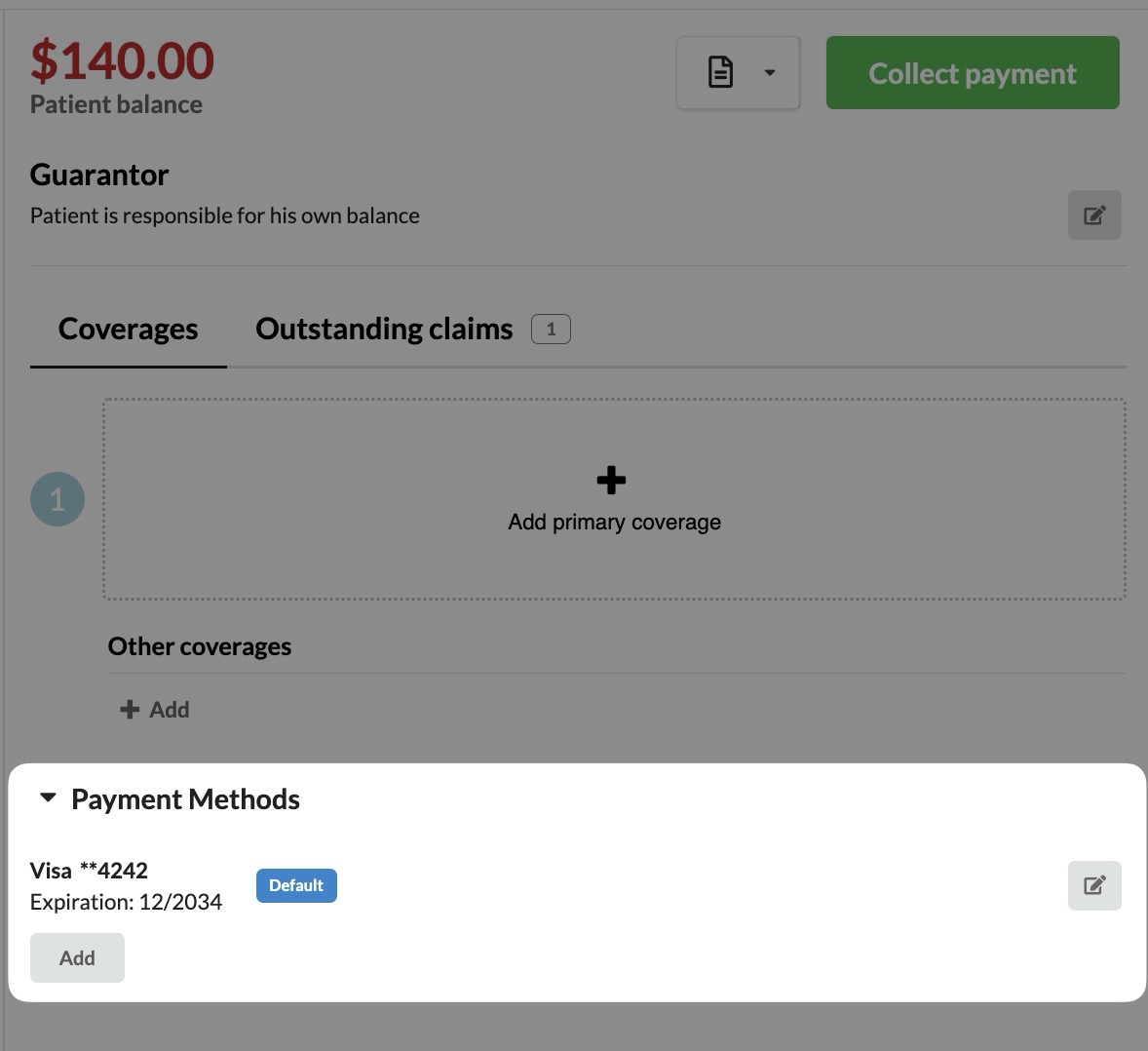
Locate the Payment Methods section under Coverages
Click Add under the Payment Methods heading
Enter the credit card details:
Name
Card number
Expiration date
CVV
Zip code
Toggle Patient Consent Given to confirm the patient has agreed to save the card for future uses
Enable Default if card being added should be the primary payment method for future transactions
Click Save and card will now be available for future transactions
Patient Management of Stored Payment Methods
Patients can manage their payment methods within the Patient Portal, including using previously saved payment methods, adding new ones, or removing existing ones.
Refer to 📄 Managing the Patient Portal for further details
Configuration & Set Up
Stripe Configuration
Within admin navigate to the Constance: Config setting
Locate the Stripe Configuration section
Enter the following API credentials from the company's primary Stripe account:
STRIPE_API_KEY: Private key
STRIPE_PUBLIC_KEY: Public key
STRIPE_CONNECTED_ACCOUNT_ID: Optional field for routing payments to a single connected account.
Click Save
If Stripe credentials (API keys) are missing or incorrectly entered, credit card payment options will not appear. Ensure both the public and private keys are configured in Admin > Constance > Config.
Business Lines Setup
If your clinic needs to send payments to multiple Stripe Connect accounts, it is essential to enable business lines. However, if there is no requirement for separate payment routing, this setup is unnecessary.
Follow our Business Lines article for detailed instructions on business line configuration.
Go to the Practice: Business Lines setting
Create or edit a business line:
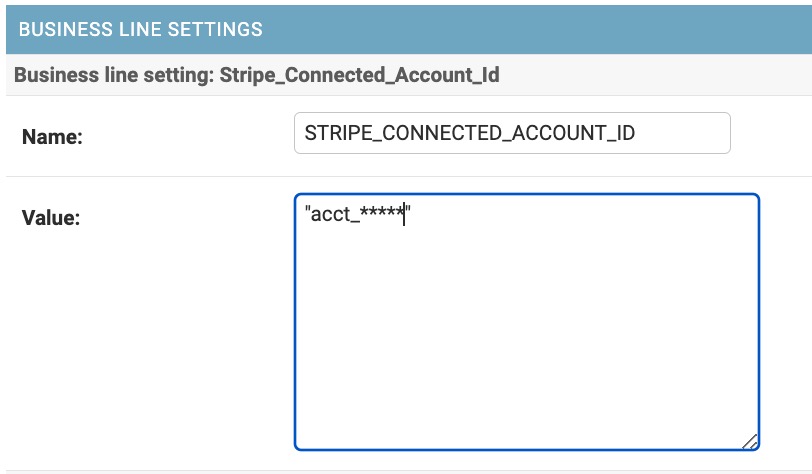
Create a new Business Line Setting
Name:
STRIPE_CONNECTED_ACCOUNT_IDValue:
"acct_*******"from the connected account in the company's Stripe dashboard.
Save changes and assign patients to business lines as needed
Creating Discounts
In Settings, navigate to Billing & Revenue: Discounts
Click Add Discount to open the discount modal
Complete the fields:
Name: Will display in the Discount dropdown in the Payment modal
Examples: Self-Pay Discount or Financial Assistance
Adjustment Group + Code: Applied when a discount is used.
Discount(%): Discount Amount. This can only be applied as a percentage.
User Permissions
No Permissions: Cannot see, add, or process payments.
Profile Read: View stored payment methods but cannot add, edit, or process payments.
Profile Write: Add and edit stored payment methods but cannot process payments.
Revenue Access: Process payments in Create a Posting but cannot view, add, or edit stored payment methods.
Profile Read + Revenue Access: View stored payment methods and process payments in Create a Posting but cannot add or edit stored methods.
Profile Write + Revenue Access: Full access—can view, add, edit, and process payments.
Guarantor
A guarantor is the individual responsible for a patient’s financial obligations. This is typically the adult patient receiving care but may also be a parent or legal guardian.
Viewing and Managing the Guarantor
The guarantor can be found in two primary locations:
Registration View: Displayed on the right-hand side below the patient balance.
Claims: Shown under the "Guarantor" section. Selecting Edit in claims redirects to the Registration View.

Adding a Guarantor
Click the notepad icon in the guarantor section of the Registration View.
Use the search box to:
Select an existing patient as the guarantor, if applicable.
Add a new guarantor if no matching patient is found.
Complete the form with the guarantor’s information:
Removing a Guarantor
To remove a guarantor, access the Registration View, select the notepad icon, and choose the option to designate the patient as responsible for their own balance.
Editing Guarantor Information
Demographic details for a guarantor must be updated in their patient profile, not the dependent patient’s profile. Navigate to the guarantor's chart either by clicking their name in the dependent's profile or searching directly. Edit necessary guarantor information.
FAQ & Troubleshooting
Q: When I enter a payment for a patient with multiple active claims, which claim is it applied to?
A: Payments are allocated to the oldest balances first. If you need to associate a payment to only one claim, use the create a posting functionality on that claim in the revenue module.
Q: How do I collect copays for multiple claims?
A: Use Add New Copay in the Collect Payment modal to add multiple copays for different claims.
Q: Can statements be sent via phone numbers?
A: No. Statements are sent only to verified emails or via physical mail (if using Lob).
Q: What happens if a payment method is saved to the wrong connected account?
Canvas Support must manually disconnect the payment method before it can be reassigned.
Q: Why don’t I see the ability to add business lines in Admin?
Business lines must be enabled in Constance Config. Your clinic administrator or Canvas Support can assist.
Related Resources
Keywords & Metadata
Keywords: payments, patient payments, guarantor payments, copays, Stripe, Stripe configuration, Stripe connected accounts, business lines, payment routing, API keys, stored payment methods, card on file, patient app, patient portal, statements, Constance config, payment method errors.
Categories: Billing & Revenue, Patient Experience, Payment Collection, Payment Processing.