Care Protocols
Last updated: May 1, 2025
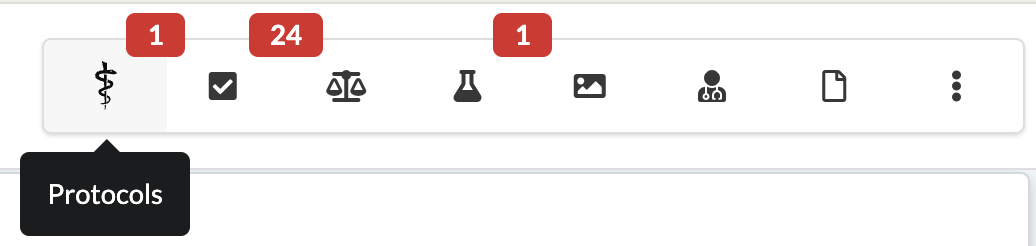
Care Protocols in Canvas are designed to assist care teams by identifying recommended services and interventions for patients. These protocols are visible via the Protocol Icon, located in the top-right menu bar of the patient chart. A red badge indicates protocols that are due for the patient. Protocol flexibility is enhanced with the Snooze Protocol feature, which allows temporary postponement of a protocol when treatment is not appropriate.
Understanding Protocols
Who Is Included in a Protocol?
Patients are automatically added to protocols based on predefined criteria, such as demographics, medical conditions, medications, or risk factors. Examples include:
Colon Cancer Screening: Patients aged 50–75 years.
Diabetes Protocols: Patients identified by age and conditions like diabetes or related medications.
Protocols are dynamically updated based on changes in patient data.
How Are Protocols Completed?
Protocols are marked as completed when required services or interventions are fulfilled:
Reviewing uploaded reports (e.g., mammograms, lab results).
Receiving laboratory data via Data Integration.
Conducting Point-of-Care (POC) Testing (e.g., Hemoglobin A1c, Creatinine).
Why Are Actual Reports Needed?
To ensure accuracy, Canvas requires documented proof for services such as mammograms or colonoscopies.
Example: A patient may report a colonoscopy, but the official report could indicate an earlier follow-up is required due to poor preparation.
Snoozing Protocols
In some cases, a protocol may need to be delayed when treatment is not clinically appropriate. The Snooze Protocol feature allows for temporary postponement with clear documentation.
Customization in Admin Settings
Protocols in Canvas Admin can be configured for:
Display in Patient Charts and/or the Population Module.
Enabling or disabling Snoozing of protocols.
Steps for Managing Protocols
Access Protocol Settings
Navigate to Settings via the triple-line menu in the Schedule View.
Open Protocols Uploads under the Practice section.
Provides an overview of protocol settings.
Show or Hide a Protocol in the Chart
Open the desired protocol.
Select the Edit ✏ button next to the Active Version field.
At the bottom of the modal:
Check SHOW IN CHART to display in patient charts.
Uncheck SHOW IN CHART to hide from patient charts.
Save changes.
Show or Hide a Protocol in the Population Module
Open the desired protocol.
Select the Edit ✏ button next to the Active Version field.
At the bottom of the modal:
Check SHOW IN POPULATION to display in the module.
Uncheck SHOW IN POPULATION to hide from the module.
Save changes.
Enable or Disable Snoozing for a Protocol
Snoozing is enabled by default.
Open the desired protocol.
Select the Edit ✏ button next to the Active Version field.
At the bottom of the modal:
Check CAN BE SNOOZED to enable snoozing.
Uncheck CAN BE SNOOZED to disable snoozing.
Save changes.
Activate or Inactivate a Protocol
Open the desired protocol.
Use the Is Active checkbox:
Check to activate.
Uncheck to inactivate.
Save changes.
Managing Protocols from the Patient Chart
Open the patient chart and click the Protocol Icon to open in the patient panel
Filter protocols by:
Active (default view)
Pending
Inactive
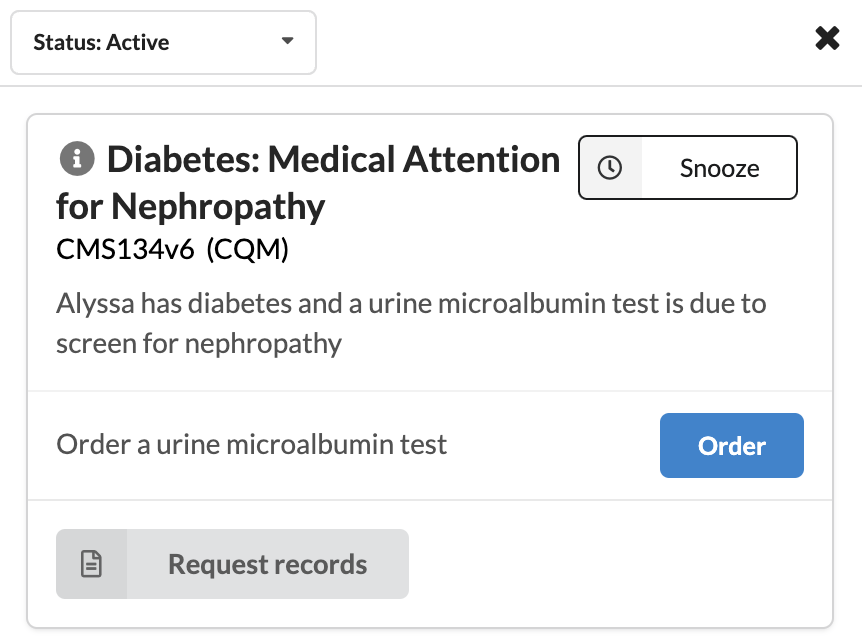
Review recommendations on each protocol card:
Exams, screening intervals, and required actions.
Actions may include ordering labs, reviewing reports, completing questionnaires, or providing instructions.
Completing recommendations moves the protocol to the inactive list.
Snooze a Protocol
A protocol can be snoozed from a note in the patient chart using the Snooze Protocol command or from the protocol card.
Snoozing a Protocol with the Command
Within a new or existing note, add the Snooze Protocol command
Complete the command fields:
Snooze Until: Enter a date manually or use the calendar dropdown.
Reason: Select the reason for snoozing from the dropdown options.
Click Snooze to confirm.
Snoozing a Protocol from the Card
Click the Protocol icon in the patient panel

Find the card of the protocol that needs to be snoozed and click the Snooze button
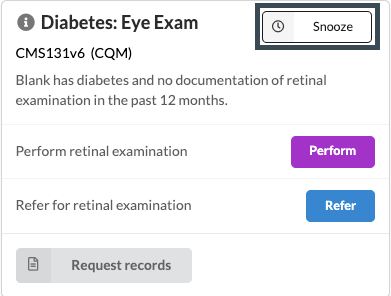
A new Snooze Protocol command will open in the active note.
If no note is open, a new Chart Review Note will be created automatically.
Complete the command fields:
Snooze Until: Enter a date manually or use the calendar dropdown.
Reason: Select the reason for snoozing from the dropdown options.
Click Snooze to confirm.
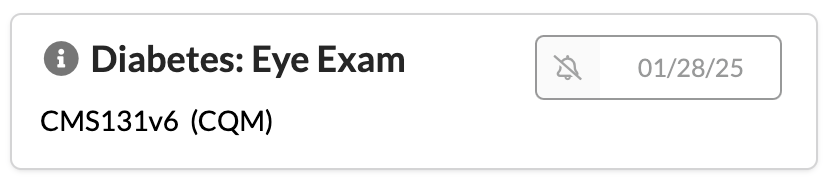
The protocol card will show as a collapsed protocol card with the selected snooze date.
FAQs
What does the "Notification only" checkbox do?
Set programmatically for notification protocols upon creation.
What is the "Patient ID/Key" section for?
Used to manually test a protocol against patient data. See the Create A Protocol documentation for details.
List of Protocols
Diabetes: Hemoglobin HbA1c Poor Control (>9%) - CMS122v6
Population: Patients aged 18–75 with diabetes.
Measure: Percentage of patients with HbA1c > 9.0% or no HbA1c test in the measurement year.
Exclusions: Patients in hospice care during the measurement year.
Intervention:
Order HgbA1c and/or intervene with behavioral recommendations or medication adjustments.
Lab results uploaded via Data Integration must also be reviewed by the provider.
Historical HbA1c data requires a report linked to LOINC code 4548-4 (e.g., Hemoglobin A1c, HbA1C with eAG).
Diabetes: Foot Exam - CMS123v6
Population: Patients aged 18–75 with diabetes.
Measure: Percentage of patients receiving a comprehensive foot exam (visual inspection, sensory exam with monofilament, pulse check).
Exclusions:
Patients with bilateral or unilateral amputations above or below the knee.
Patients in hospice care during the measurement year.
Intervention:
Conduct a comprehensive foot exam and document findings using the Physical Exam Command.
Diabetes: Medical Attention for Nephropathy - CMS134v6
Population: Patients aged 18–75 with diabetes and at least one visit during the measurement period.
Measure: Percentage of patients who received nephropathy screening or evidence of nephropathy within the past 12 months.
Exclusions: Patients in hospice care during the measurement year.
Intervention:
Order urine microalbumin tests or conduct point-of-care testing.
Upload lab results linked to LOINC code 14957-5 (e.g., Albumin/Creatinine Ratio, Random Urine).
Diabetes: Mellitus with Secondary Complication Suspect - HCC003v1
Population: Patients with an active diagnosis of uncomplicated diabetes mellitus (E11.9).
Measure: Patients with E11.9 diabetes who also have a condition considered secondary or exacerbated by diabetes.
Intervention:
Consider updating the diagnosis from E11.9 (uncomplicated diabetes) to one reflecting secondary complications if appropriate.
Diabetes: Eye Exam - CMS131v1
Population: Patients aged 18–75 with diabetes.
Measure: Percentage of patients who had a retinal or dilated eye exam by an eye care professional or a negative retinal exam within the past 12 months.
Exclusions: Patients in hospice care during the measurement year.
Intervention:
Order retinal or dilated eye exams.
Upload specialist consult reports via Data Integration (e.g., Ophthalmology: Diabetic Retinopathy Screening).
Breast Cancer Screening - HCC002v2
Population: Female patients aged 50–75.
Measure: Percentage of patients who received breast cancer screening within the past 27 months.
Exclusions:
Patients with documented bilateral or serial R/L mastectomy.
Intervention:
Order mammography (e.g., full-field digital or tomosynthesis).
Upload imaging reports linked to LOINC code 24606-6.
Colorectal Cancer Screening - CMS130v6
Population: Patients aged 45–75.
Measure: Percentage of patients who received appropriate colorectal cancer screening.
Exclusions:
Patients with a history of total colectomy or colorectal cancer.
Patients in hospice care during the measurement year.
Intervention:
Order stool-based tests (e.g., gFOBT, FIT, sDNA-FIT).
Order direct visualization tests (e.g., colonoscopy, CT colonography).
Upload imaging or consult reports via Data Integration.
CKD Suspect - HCC002v2
Population: Patients with two eGFR lab values < 60 mL/min/1.73 m² in the past two years.
Intervention:
Consider updating the Conditions List to include kidney-related problems if appropriate.
Dysrhythmia Suspects - HCC004v1
Population: Patients with active anti-arrhythmic medications and no active dysrhythmia diagnosis.
Measure: Identifies patients on anti-arrhythmic drugs without a related diagnosis.
Intervention:
Consider adding dysrhythmia-related diagnoses to the Conditions List.
Problem List Hygiene - HCC001v1
Population: Patients with significant active conditions not assessed in the last year.
Intervention:
Assess or resolve active conditions as clinically appropriate.
Annual Wellness Visit - HCC005v1
Population: Patients aged 65 and older.
Measure: Patients without an annual wellness visit in the past year.
Intervention:
Schedule and complete an annual wellness visit using CPT codes G0438 or G0439.
Tobacco Use: Screening and Cessation Intervention - CMS138v6
Population: Patients aged 18 and older seen for at least two visits or one preventive visit during the measurement period.
Measure: Three rates are reported:
Patients screened for tobacco use within 24 months.
Tobacco users who received cessation intervention.
Screened patients who also received cessation intervention, if identified as users.
Intervention:
Complete tobacco use questionnaires.
Provide counseling using the Instruct Command.
Prescribe cessation medications.
Keywords & Metadata
Keywords: Care Protocols, Canvas Admin, Patient Chart, Protocol Management, Population Module, Snoozing Protocols, Data Integration.
Categories: Medical Protocols, Patient Care, Canvas Features.