Connecting Your Google Calendar to Canvas
Last updated: October 14, 2026
Google Calendar sync is in limited beta.
Contact Canvas Support to be added to the waitlist.
Connect your Google account to Canvas so your calendars stay in sync both ways:
Canvas to Google: your Canvas appointments copy to a new Canvas (Busy) calendar in your Google account. Each event shows only the visit type and time, is marked private, and carries no patient details.
Google to Canvas: busy events on the Google calendars you select show as Busy on your Canvas schedule, so that time is not offered for booking.
Connect your calendar
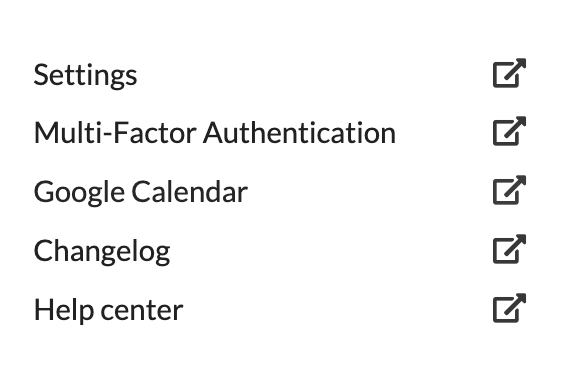
Open the left sidebar menu and click Google Calendar. It opens in a new browser tab.
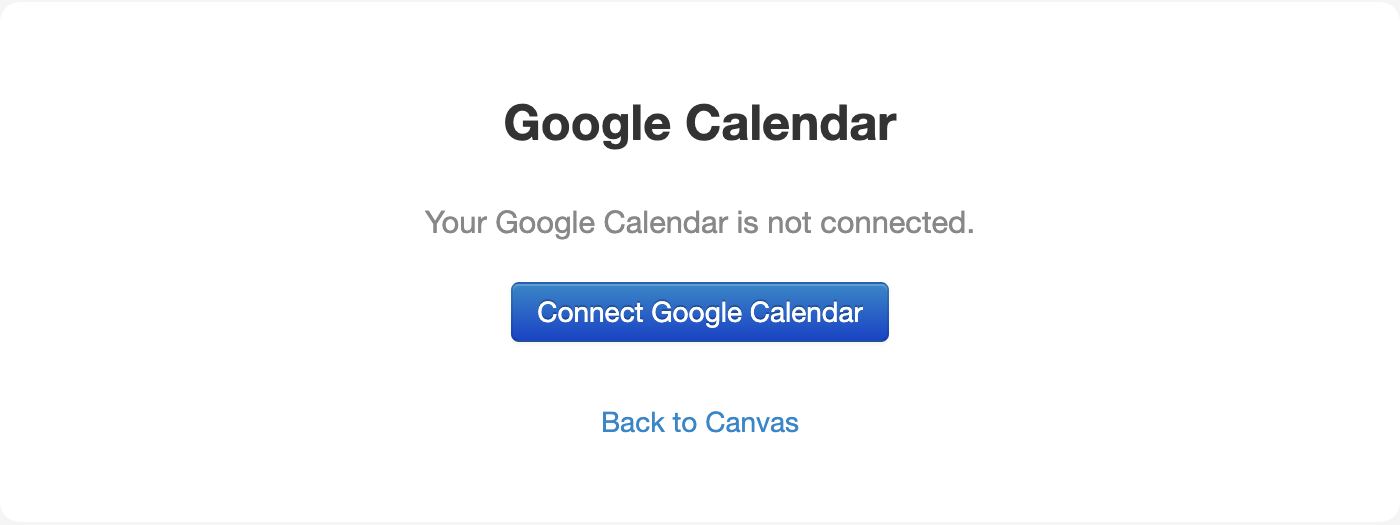
Click Connect Google Calendar.
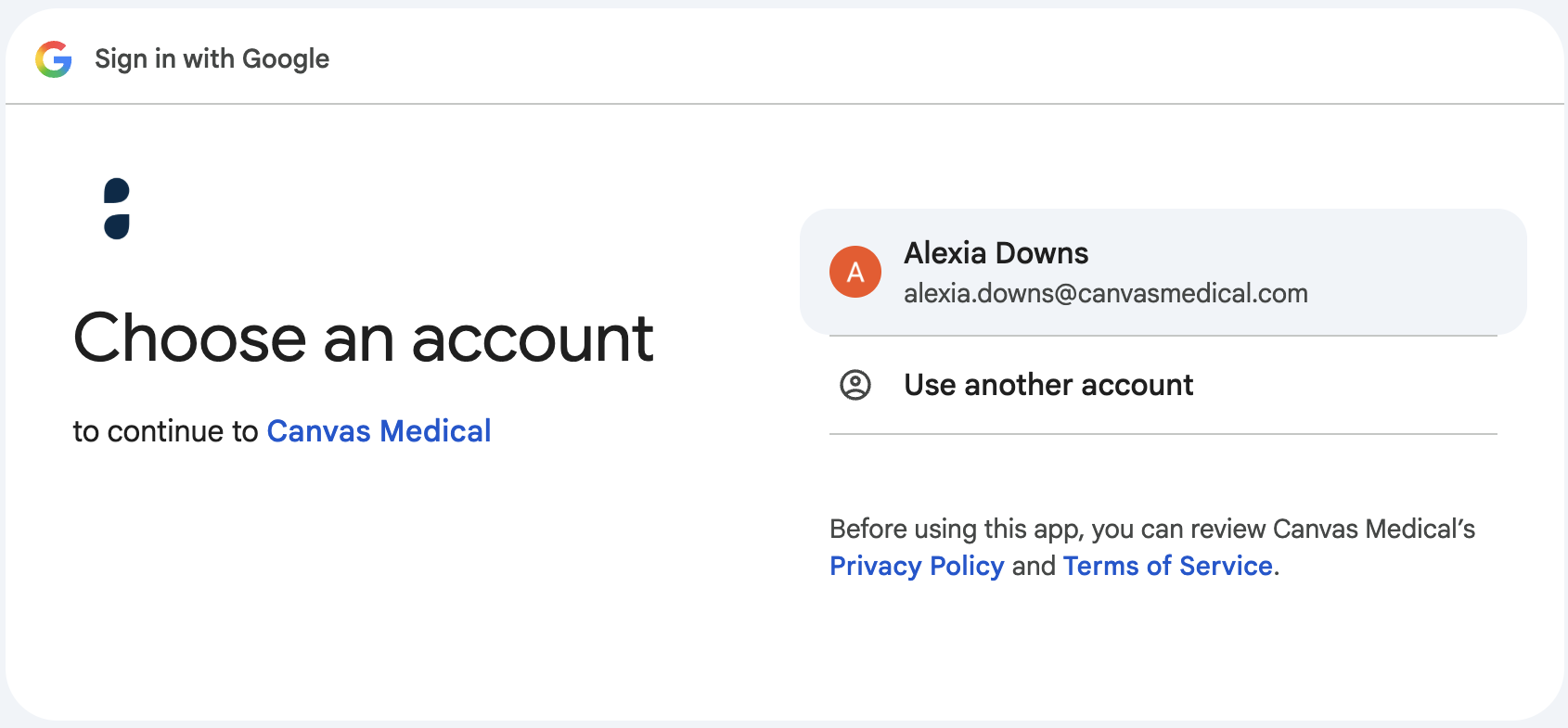
Choose your Google account.
Click Continue.
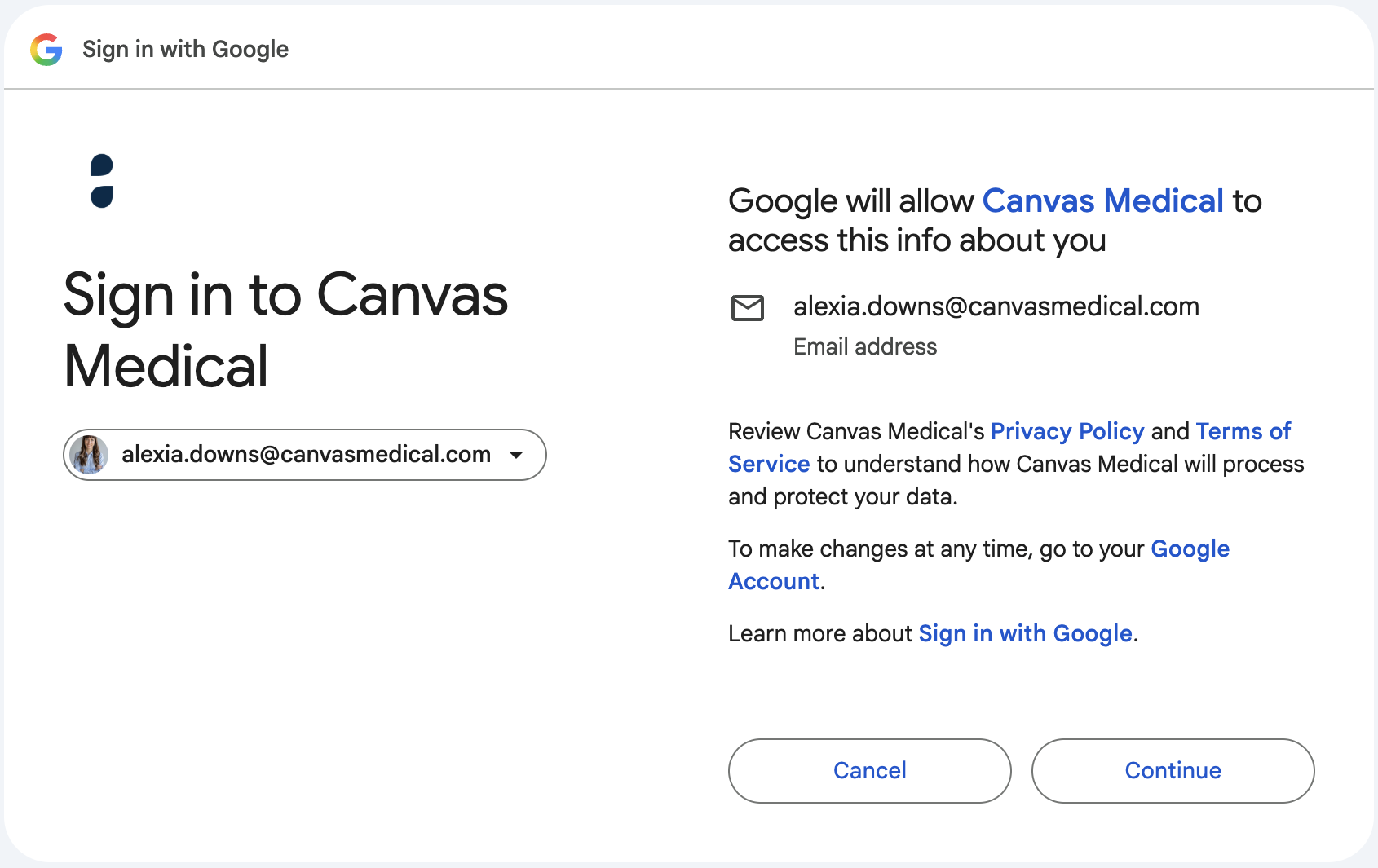
Click Allow to give Canvas access to your calendars. If you see checkboxes, leave them all checked.
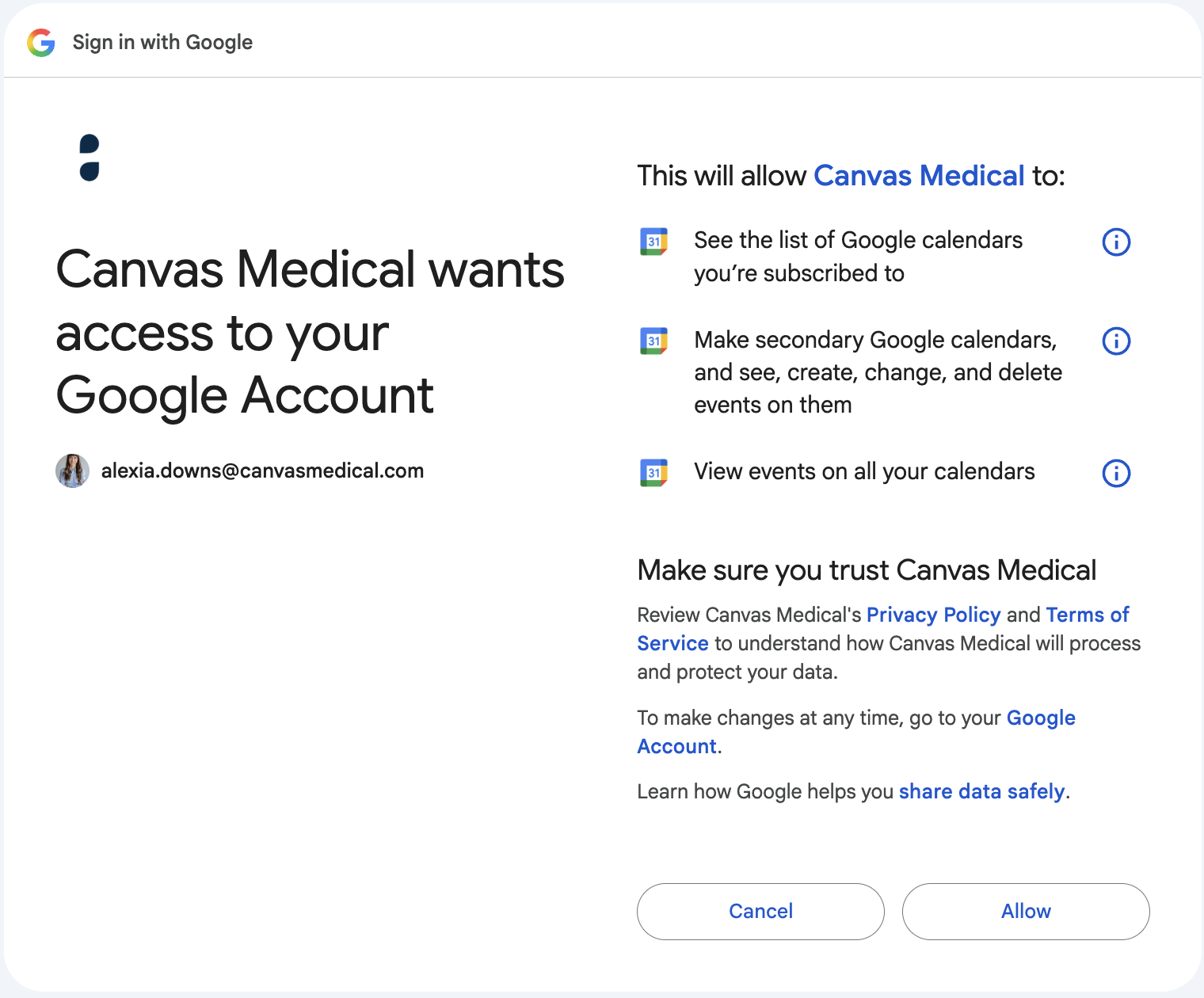
Back in Canvas, check the calendars you want to sync and click Save selection. Busy times on these calendars will block time on your Canvas schedule.
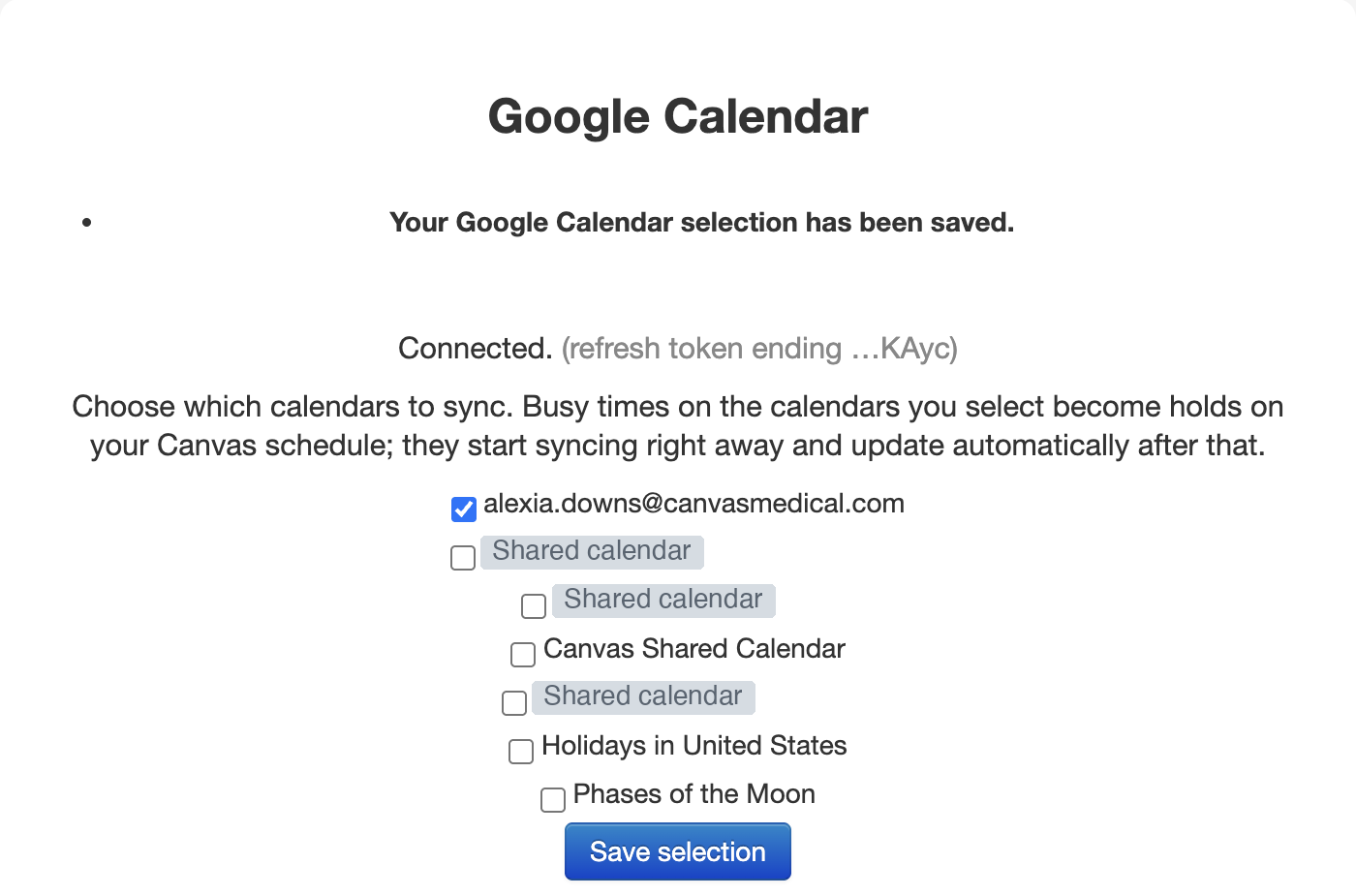
How syncing works
Situation | What happens |
|---|---|
An appointment is booked, moved, or canceled in Canvas | The Canvas (Busy) calendar in Google updates to match. Canceled appointments are removed. |
You add, move, or delete an event on a selected Google calendar | The matching hold on your Canvas schedule updates. Changes are picked up automatically, typically within about 15 minutes. |
A Google event spans several days, or is all-day | Canvas blocks each full day the event covers. The day runs midnight to midnight in your Google calendar's time zone, so if Google is set to a different time zone than your practice, the block shifts by the difference. |
An event in Google is marked Free | It does not block time in Canvas. |
You decline a Google invitation | It does not block time in Canvas. Events you accept, or mark as Maybe, do block time. |
Date range | Syncing covers roughly the past month through the next six months. |